Yes!
Simply Homeschool Premium Membership offers the options of quickly and easily creating a report for each Core Program or Just Good Book that your student is doing.
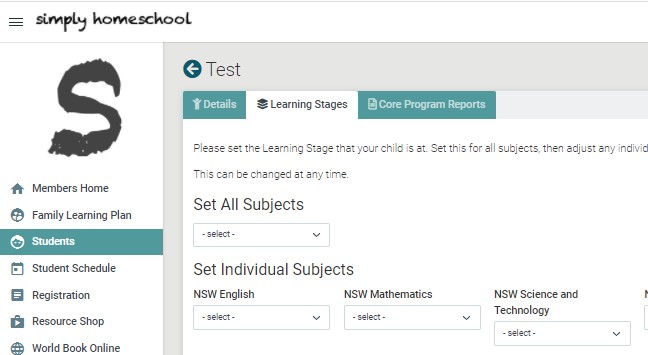
1. Set the "Learning Stages" for your Student: Go to "Students" in the main menu. Under your Student's tile go to "Details" and navigate to the "Learning Stages" tab as shown below. Use the "Set All Subjects" drop-down to set the year or stage that your Student is at in the majority of subjects. Adjust this within the individual subject drop-downs as necessary.
2. Navigate to Reports in the next tab or within your student's tile. Click on the "+Create Report" button.
3. Choose the Program you wish to do a report for. Only Programs scheduled for that student with at least one lesson completed will show in the report list. Click "Create Report" button.
4. All Activities with a comment or a photo will show on a table.
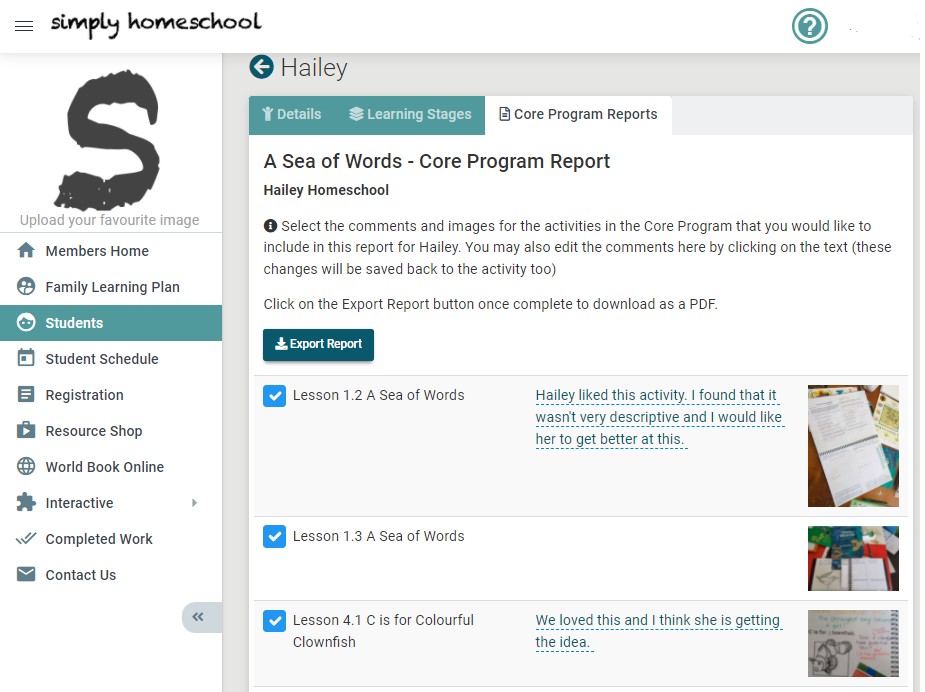
5. Click on "Export Report". This will download a PDF of your report.