Adjusting Your Student Schedule
The "view" of your student schedule can be adjusted by clicking on the "Fortnightly" button at the top right of the schedule.
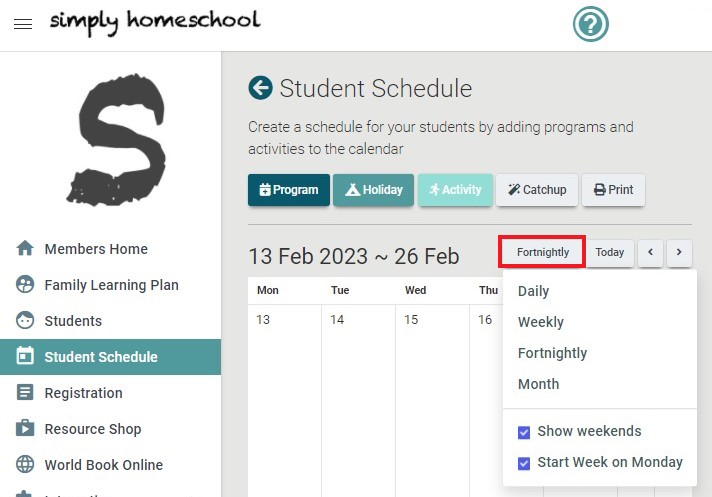
- Daily, Weekly, Fortnightly and Monthly give you the option to view this time period of the calendar.
- You have the option to turn on and off weekends and start the week on a Sunday or a Monday.
Lessons in your student schedule can be quickly and easily adjusted by dragging and dropping to Lesson or by double-clicking on a Lesson.
To drag and drop a lesson to a different date :
- Hover over the lesson until your cursor changes from an arrow to a hand.
- Click and hold while you drag it to a new day. Release and the lesson will drop into place.
When you double click on a lesson the below box will pop up:
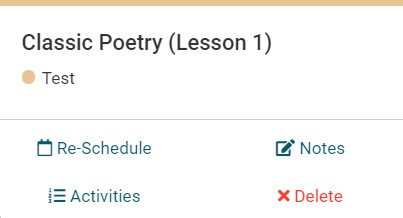
- Re-Schedule: Set a new schedule and/or update all incomplete lessons for the program.
- Notes: Add a note or photo to your Student about a particular lesson or activity. This will appear on their login with the lesson you have clicked on.
- Activities: View comments and photos that your Student has added to the activities in this lesson.
- Delete: Delete the program from your Student Schedule.
Quickly add new programs and lessons into your Student Schedule by double-clicking in the calendar. When you do this you can choose Programs from your Family Learning Plan to schedule.